Setup
This guide will help you install Qualcomm AI Engine Direct (referred to most commonly as the “QNN SDK”), as well as all necessary dependencies for your use case.
Throughout these docs, we will refer to the “host machine” as the computer you are using to work with your AI model files. Meanwhile, the “target device” is the device that contains the information processing (IP) cores that will actually run the AI inferences.
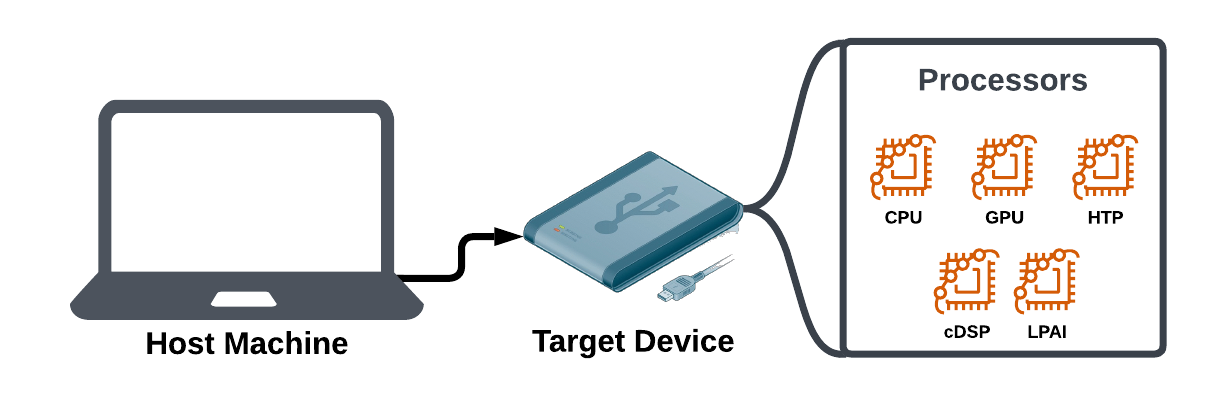
In some cases, as with some devices running Windows on Snapdragon, a single machine may be acting as both the “host machine” and the “target device”.
Once you have finished with the setup guide, you can follow the CNN to QNN tutorial to understand how to use the QNN SDK. The tutorial covers how to build and run an AI model on your target device’s IP cores.
$ sudo apt-get update $ sudo apt-get install python3.10 python3-distutils libpython3.10
Virtual Environment (VENV)
Whether managing multiple python installations or just to keep your system python installation clean we recommend using python virtual environments.
$ sudo apt-get install python3.10-venv
$ python3.10 -m venv "<PYTHON3.10_VENV_ROOT>"
$ source <PYTHON3.10_VENV_ROOT>/bin/activate
Note
If your environment is in WSL, <PYTHON3.10_VENV_ROOT> must be under $HOME.
Additional Packages
Some additional python packages need to be available in your environment in order to be able to interact with Qualcomm® AI Engine Direct components and tools. This Qualcomm® AI Engine Direct release is verified to work with the versions of the packages specified below:
Package |
Version |
|---|---|
absl-py |
2.1.0 |
aenum |
3.1.15 |
attrs |
23.2.0 |
dash |
2.12.1 |
decorator |
4.4.2 |
invoke |
1.7.3 |
joblib |
1.4.0 |
jsonschema |
4.19.0 |
lxml |
5.2.1 |
Mako |
1.1.0 |
matplotlib |
3.6.0 |
mock |
3.0.5 |
numpy |
1.26.4 |
opencv-python |
4.8.1.78 |
optuna |
3.3.0 |
packaging |
24.0 |
pandas |
2.0.1 |
paramiko |
3.4.0 |
pathlib2 |
2.3.6 |
Pillow |
10.2.0 |
plotly |
5.20.0 |
protobuf |
3.19.6 (TensorFlow), 6.31.0 (ONNX) |
psutil |
5.6.4 |
pydantic |
2.8.2 |
pytest |
8.1.1 |
PyYAML |
5.3 |
rich |
13.9.4 |
scikit-optimize |
0.9.0 |
scipy |
1.10.1 |
six |
1.16.0 |
tabulate |
0.9.0 |
typing-extensions |
4.10.0 |
xlsxwriter |
1.2.2 |
Note
Matplotlib with 3.6.0 and Pandas with 2.0.2 have been verified on Windows
Run the following script to check and install missing dependencies:
$ python3 -m pip install --upgrade pip
$ ${QNN_SDK_ROOT}/bin/check-python-dependency
Optional packages
Some additional model- and dataset-specific python packages need to be installed to interact with the accuracy evaluator. The following table lists the packages and the recommended version.
Package |
Version |
|---|---|
pycocotools |
2.0.6 |
transformers |
4.31.0 |
tokenizers |
0.19.1 |
sacrebleu |
2.3.1 |
scikit-learn |
1.3.0 |
OpenNMT-py |
2.3.0 |
sentencepiece |
0.1.98 |
tiktoken |
0.7.0 |
tqdm |
4.65.0 |
Note
To set QNN_SDK_ROOT see Environment Setup for Linux.
Linux
Compiling artifacts for the x86_64 target requires clang++. This Qualcomm® AI Engine Direct SDK release is verified to work with clang-14.
Run the following script to check and install missing linux dependencies:
# Note: the following command should be run as administrator/root to be able to install system libraries

$ sudo bash ${QNN_SDK_ROOT}/bin/check-linux-dependency.sh
Note
To set QNN_SDK_ROOT see Environment Setup for Linux.
ML Frameworks
In order to convert ML models trained on different frameworks into intermediate representations consumable by Qualcomm® AI Engine Direct you may need to download and install the corresponding frameworks on your host machine.
This Qualcomm® AI Engine Direct release is verified to work with the following versions of the ML training frameworks.
TensorFlow: tf-2.10.1
TFLite: tflite-2.3.0
PyTorch: torch-1.13.1
Torchvision: torchvision-0.14.1
ONNX: onnx-1.19.1
ONNX Runtime: onnxruntime-1.23.2
ONNX Simplifier: onnxsim-0.4.36
Toolchains
The Qualcomm® AI Engine Direct SDK allows users to compile custom operation packages to be used with the different backends such as the CPU, GPU, HTP, DSP, and others. You may need to install appropriate cross-compilation toolchains in order to compile such packages for a particular backend.
MAKE
Operation packages are compiled with a front-end that is written with Makefiles. If make is not available on your host machine install it using the following command:
$ sudo apt-get install make
Android NDK
This Qualcomm® AI Engine Direct release is verified to work with Android NDK version r26c. The same can be downloaded from https://dl.google.com/android/repository/android-ndk-r26c-linux.zip. Once the zip file is downloaded and extracted, the extracted location needs to be added to PATH environment variable.
To set the environment to use Android NDK, the following commands can be used to set and check proper configuration:
$ export ANDROID_NDK_ROOT=<PATH-TO-NDK>
$ export PATH=${ANDROID_NDK_ROOT}:${PATH}
$ ${QNN_SDK_ROOT}/bin/envcheck -n
Note
If your environment is in WSL, Android NDK must be unzipped under $HOME with unzip command of WSL.
OE Linux
Following section provides steps to acquire the gcc toolchain for targets which are based on Linux distributions like Yocto or Ubuntu. In this case taking Yocto Kirkstone as an example, which requires GCC toolchain. To support Yocto Kirkstone based devices, the SDK libraries are required to compile with GCC-11.2.
If the required compiler is not available in your system PATH, please use the below steps to install the dependency and make them available in your PATH.
Please follow the below steps to download and install eSDK that contains cross compiler toolchain -
wget https://artifacts.codelinaro.org/artifactory/qli-ci/flashable-binaries/qimpsdk/qcm6490/x86/qcom-6.6.28-QLI.1.1-Ver.1.1_qim-product-sdk-1.1.3.zip
unzip qcom-6.6.28-QLI.1.1-Ver.1.1_qim-product-sdk-1.1.3.zip
umask a+rx
sh qcom-wayland-x86_64-qcom-multimedia-image-armv8-2a-qcm6490-toolchain-ext-1.0.sh
export ESDK_ROOT=<path of installation directory>
cd $ESDK_ROOT
source environment-setup-armv8-2a-qcom-linux
clang-14
This Qualcomm® AI Engine Direct release is verified to work with clang-14. Please refer to Linux Dependency section to help with installation of the same.
To check if the environment is setup properly to use clang-14, the following command can be used:
$ ${QNN_SDK_ROOT}/bin/envcheck -c
CPU
The x86_64 targets are built using clang-14 (see Linux Dependency). The ARM CPU targets are built using Android NDK (see Android NDK).
GPU
The GPU backend kernels are written based on OpenCL. The GPU operations must be implemented based on OpenCL headers with minimum version OpenCL 2.0.
HTP/DSP
Compiling for HTP/DSP requires the use of the Hexagon toolchain available from Qualcomm® Hexagon SDK.
Hexagon SDK installation on Linux
The Hexagon SDK versions are available at https://developer.qualcomm.com/software/hexagon-dsp-sdk/tools.
Hexagon SDK installation on WSL2 Ubuntu 22.04
Download Hexagon SDKs from https://qpm.qualcomm.com in a Linux PC.
Copy Hexagon SDKs from Linux PC to Windows PC.
This Qualcomm® AI Engine Direct release is verified to work with:
Backend |
Hexagon Architecture |
Hexagon SDK Version |
Hexagon Tools Version |
|---|---|---|---|
HTP |
V75 |
5.4.0 |
8.7.03 |
HTP |
V73 |
5.4.0 |
8.6.02 |
HTP |
V69 |
4.3.0 |
8.5.03 |
HTP |
V68 |
4.2.0 |
8.4.09 |
DSP |
V66 |
4.1.0 |
8.4.06 |
DSP |
V65 |
3.5.2 |
8.3.07 |
Additionally, compiling for HTP/DSP requires clang++.
Further setup instructions are available at $HEXAGON_SDK_ROOT/docs/readme.html, where
HEXAGON_SDK_ROOT is the location of the Hexagon SDK installation.
Note
Hexagon SDK tools version 8.4.09/8.4.06/8.3.07 is not currently pre-packaged into Hexagon SDK version 4.2.0/4.1.0/3.5.2 respectively. It needs to be downloaded separately and placed at the location $HEXAGON_SDK_ROOT/tools/HEXAGON_Tools/ .
Host Environment Setup
Connect to SSH
Note
Ensure that a Wi-Fi connection is established before connecting to SSH.
Find the IP address of the RB3 Gen 2 device in UART console:
ifconfig
Use the IP address obtained from step 1 to SSH the device:
ssh root@ip-address
Connect to the SSH shell using the following password:
oelinux123
Note
Ensure that the Linux host is connected to the same Wi-Fi access point.
Note
To transfer the files successfully using the scp command, use the password oelinux123.
Windows Platform Dependencies
Host OS
Qualcomm® AI Engine Direct SDK is verified with Windows 10 and Windows 11 OS on a x86 host platform and with Windows 11 OS on a Snapdragon platform.
Python
This Qualcomm® AI Engine Direct SDK distribution is supported on python3 only. The SDK has been tested with python3.10. Please download and install it with https://www.python.org/ftp/python/3.10.11/python-3.10.11-amd64.exe.
After installation, check dependencies by running the following script in PowerShell terminal window.
$ py -3.10 -m venv "<PYTHON3.10_VENV_ROOT>"
$ & "<PYTHON3.10_VENV_ROOT>\Scripts\Activate.ps1"
$ python -m pip install --upgrade pip
$ python "${QNN_SDK_ROOT}\bin\check-python-dependency"
Note
You can set QNN_SDK_ROOT environment variable by following Environment Setup for Windows.
Windows
Compiling artifacts for the Windows targets requires Visual Studio setup. Qualcomm® AI Engine Direct SDK was verified with the following build environment.
Visual Studio 2022 17.5.1
MSVC v143 - VS 2022 C++ x64/x86 build tools - 14.34
MSVC v143 - VS 2022 C++ ARM64/ARM64EC build tools - 14.34
Windows SDK 10.0.22621.0
MSBuild support for LLVM (clang-cl) toolset
C++ Clang Compiler for Windows (15.0.1)
C++ CMake tools for Windows
Run the following script in Powershell terminal as Administrator to check and install missing Windows dependencies:
$ & "${QNN_SDK_ROOT}/bin/check-windows-dependency.ps1"
Note
You can set QNN_SDK_ROOT environment variable by following Environment Setup for Windows.
To just check if the environment satisfies the requirements, run the following command in your Developer Powershell terminal:
$ & "${QNN_SDK_ROOT}/bin/envcheck.ps1" -m
Environment Setup
Linux
After Linux Platform Dependencies have been satisfied, the user environment can be set with the provided envsetup.sh script.
Open a command shell on Linux host and run:
$ source ${QNN_SDK_ROOT}/bin/envsetup.sh
This will set/update the following environment variables:
QNN_SDK_ROOT
PYTHONPATH
PATH
LD_LIBRARY_PATH
${QNN_SDK_ROOT} represents the full path to Qualcomm® AI Engine Direct SDK root.
The QNN API headers are in ${QNN_SDK_ROOT}/include/QNN.
The tools are in ${QNN_SDK_ROOT}/bin/x86_64-linux-clang.
Target specific backend and other libraries are in ${QNN_SDK_ROOT}/lib/*/.
Install TensorFlow as a standalone Python module using https://pypi.org/project/tensorflow/2.10.1/ To ensure TensorFlow is in your PYTHONPATH, run the following command.
python3 -c "import tensorflow"
- See ML Frameworks for information on versions Qualcomm® AI Engine Direct SDK was verified with. Note that
installing versions of TensorFlow besides 2.10.1 may update dependencies (e.g. numpy).
Install ONNX as a standalone Python module using https://pypi.org/project/onnx/1.19.1/ and ensure ONNX is in your PYTHONPATH by running the following command. Note that installing ONNX may update its dependencies (e.g. protobuf).
python3 -c "import onnx"
See ML Frameworks for information on versions Qualcomm® AI Engine Direct SDK was verified with.
Install ONNX Runtime as a standalone Python module using https://pypi.org/project/onnxruntime/1.23.2/ and ensure ONNX Runtime is in your PYTHONPATH by running the following command.
python3 -c "import onnxruntime"
See ML Frameworks for information on versions Qualcomm® AI Engine Direct SDK was verified with.
Install ONNX Simplifier as a standalone Python module using https://pypi.org/project/onnxsim/0.4.36/ and ensure ONNX Simplifier is in your PYTHONPATH by running the following command.
python3 -c "import onnxsim"
See ML Frameworks for information on versions Qualcomm® AI Engine Direct SDK was verified with.
Install TFLite as a standalone Python module using https://pypi.org/project/tflite/2.3.0/ and ensure TFLite is in your PYTHONPATH by running the following command.
python3 -c "import tflite"
See ML Frameworks for information on versions Qualcomm® AI Engine Direct SDK was verified with.
Install PyTorch v1.13.1 as a standalone Python module using https://pytorch.org/get-started/previous-versions/#v1131 and ensure PyTorch is in your PYTHONPATH by running the following command.
python3 -c "import torch"
See ML Frameworks for information on versions Qualcomm® AI Engine Direct SDK was verified with.
Install Torchvision as a standalone Python module using https://pypi.org/project/torchvision/0.14.1/ and ensure Torchvision is in your PYTHONPATH by running the following command.
python3 -c "import torchvision"
See ML Frameworks for information on versions Qualcomm® AI Engine Direct SDK was verified with.
Windows
After Windows Platform Dependencies have been satisfied, the user environment can be set with the provided envsetup.ps1 script.
First, open Developer PowerShell for VS2022 as Administrator.
$ Set-ExecutionPolicy RemoteSigned
Then, execute the following script.
$ & "<QNN_SDK_ROOT>\bin\envsetup.ps1"
This will set/update the following environment variables:
QNN_SDK_ROOT
${QNN_SDK_ROOT} represents the full path to Qualcomm® AI Engine Direct SDK root.
The QNN API headers are in ${QNN_SDK_ROOT}/include/QNN.
The tools are in ${QNN_SDK_ROOT}/bin/x86_64-linux-clang.
Target specific backend and other libraries are in ${QNN_SDK_ROOT}/lib/*/.
Note
envsetup.ps1 is only required to be executed on Windows host.